
Adobe Scan AI PDF Scanner, OCR
AdobeBusiness
4.661.37K Reviews
- Version
- Varies With Device
- Installs
- 100.00M
- Age Rating
- Everyone
Screenshots
Our Review of Adobe Scan AI PDF Scanner, OCR
 Analysis by Appyee
Before I open a scanning app, I try to decide what the file is for: a record I’ll keep, a form I need to send, or text I’ll reuse later. That small choice makes a difference with Adobe Scan AI PDF Scanner, OCR. It’s a business-focused app from Adobe, and I find it most useful when it turns loose paper into a document I can actually find and pass along, rather than simply making another image on my phone.
Start with the paper trail, not the camera
A phone scan is only helpful if the result has a clear destination. For a receipt, that might be an expense folder; for a signed form, it may be an email attachment; for class notes, it could be a searchable reference. I recommend choosing that destination before capturing a page. It reduces the chance of ending up with a stack of anonymous PDFs that are technically digital but just as hard to manage as the papers they replaced.
This is where I see the app fitting into a sustainable productivity routine. Use it at the moment paper arrives, give the scan a name that will make sense next month, and share or store it where you normally look for that kind of document. That habit matters more than scanning every scrap. If your main problem is finding paperwork later, a simple naming convention—such as a person or project followed by the document type—can be more useful than adding scans without a filing plan.
Capture pages with a purpose
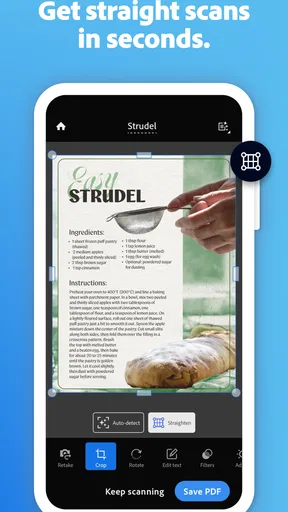
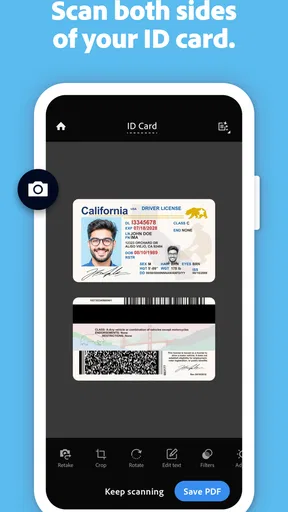
The app’s central job is to make a phone camera useful for paperwork. I’d reach for it when I’m away from a desk and need a copy of a receipt, a page of notes, or a document that someone expects as a PDF. In those moments, being able to capture and prepare a file on the same device is more practical than waiting to get back to a flatbed scanner or taking a casual photo that may be awkward to read or send.
For a multi-page document, I’d scan the pages in order and check the finished file before sending it. That quick review catches common real-world mistakes: a page captured at an angle, a corner cut off, or a page included twice. I also try to place the paper on a contrasting, uncluttered surface and keep my hand and phone steady. These aren’t glamorous tricks, but they improve the source image and give the app less guesswork to do.
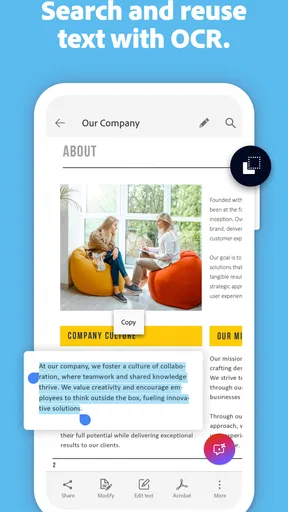
OCR is most valuable when I need more than a visual record. If a printed passage, address, or reference number needs to be reused, recognized text can save the trouble of typing it all over again. I still treat OCR as a first draft, especially for small type, unusual fonts, or low-contrast print. Names, totals, dates, and account details deserve a deliberate check before I rely on them; a plausible-looking recognition error can be harder to spot than a visibly blurry scan.
Build a routine you can repeat
My preferred routine is deliberately short: capture the pages, check their order and legibility, give the file a meaningful name, then send or save it where it belongs. I wouldn’t scan every piece of paper just because the camera is available. Keeping documents that have a purpose—and disposing of duplicates when appropriate—helps prevent a digital inbox from becoming a new pile of clutter.
For example, imagine I’m leaving an appointment with a printed instruction sheet and a receipt. I can scan both while they’re still together, inspect the pages, and separate them into files if I’ll need them for different reasons. The instruction sheet may be useful to search later, while the receipt may need to go with an expense record. Thinking about that distinction at capture time makes the scans easier to use instead of forcing me to sort them out weeks later.
Where it fits among scanner choices
Compared with taking an ordinary camera photo, a document-scanning app is designed around producing a more usable digital document rather than just preserving a scene. Compared with a physical scanner, a phone is easier to carry and better suited to a page that needs attention right now, but it depends on careful framing and a steady capture. For a large batch of papers, a bound book, or work that demands consistent archival quality, a dedicated scanner may be the more comfortable tool.
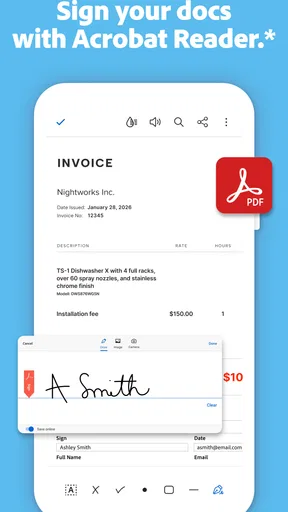
There’s also a choice between a focused scanning workflow and a broader document editor. I like using a scanner app to capture, recognize, and share paperwork, but I wouldn’t expect it to replace a full desktop PDF editor when I need extensive page rearrangement, detailed layout changes, or repeated document revisions. Adobe Scan is most convincing as the front door for paper entering a digital workflow, not as the only tool for every later task.
The Power of Scanning on the Go
First off, let’s talk about the convenience factor. Adobe Scan AI PDF Scanner, OCR turns your phone into a portable scanner, meaning you can digitize documents anytime, anywhere. Whether it’s a receipt, a note, or an entire book, this app has got you covered. I was pleasantly surprised by how well it captures even the tiniest details — it’s like having a mini scanner in your pocket.
AI-Driven Accuracy
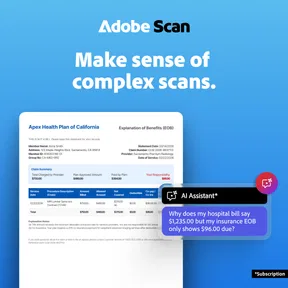
One of the coolest features is the AI-powered OCR (Optical Character Recognition). This tech wizardry means the app doesn’t just snap a picture of your document; it actually reads the text and allows you to edit it. I tried it with a few different fonts and sizes, and it handled them like a pro. Whether you need to extract text for editing or just want a clean PDF, this feature is a lifesaver.
Easy Organization
Now, once you’ve scanned your docs, the app helps you keep everything tidy. You can save your scans to the cloud, email them, or even send them straight to other Adobe apps. This integration is super handy if you’re already in the Adobe ecosystem. Plus, the app automatically enhances your scans, so they always look crisp and professional.
User Interface and Experience
The user interface is smooth and intuitive, which is something I always appreciate. You don’t need to be a tech guru to figure it out. The app guides you through each step, from scanning to saving. The design is sleek, with easy-to-navigate menus and options. I found it quite user-friendly, which is always a plus in my book.
Security and Sharing
Security is another strong point for this app. With so many sensitive documents being digitized, you want to ensure they’re safe. Adobe Scan offers robust security features, letting you password-protect your PDFs. Sharing is also a breeze. You can quickly send your documents via email or share them through a link, which is perfect for collaboration or sending important files on the fly.
Room for Improvement?
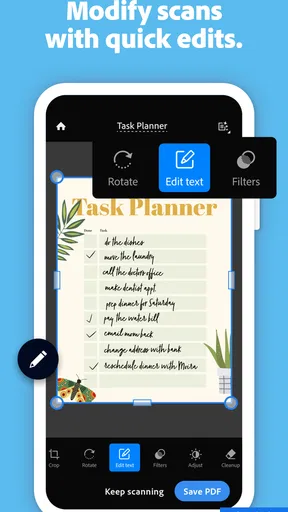
While Adobe Scan AI PDF Scanner, OCR is pretty impressive, there’s always room for improvement. For instance, it would be nice to have more editing features directly in the app. Sometimes, you might want to tweak a scanned document without switching apps. Also, a few more customization options for organizing documents wouldn't hurt.
Another potential hiccup is the occasional need for an internet connection, especially for saving to the cloud. It’s not a deal-breaker, but something to keep in mind if you’re often on the go without Wi-Fi.
Final Thoughts
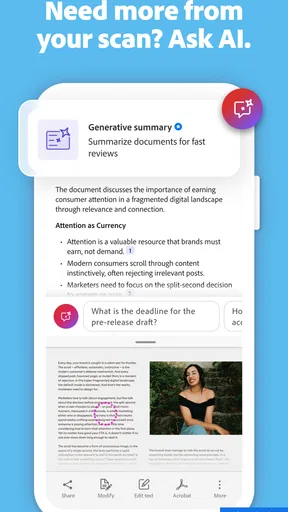
All in all, if you’re in the market for a reliable and powerful scanning app, Adobe Scan is a solid choice. Its AI capabilities, ease of use, and integration with other Adobe products make it a standout option. Whether you’re scanning documents for business or personal use, it delivers a seamless experience that just makes life a bit easier.
So, if you’re ready to cut down on physical paperwork and embrace the digital age, give this app a try. You might just wonder how you ever managed without it!
Who will get the most from it
I’d recommend it to people who regularly receive paper away from their desk: freelancers collecting receipts, students keeping handouts, small-business owners saving invoices, or anyone who needs to email a clean copy of a form without finding a printer or scanner. Adobe Scan is free to download and is rated for everyone. Its 4.7 average across around 3 million ratings and more than 100 million installs suggest that phone-based scanning is a familiar routine for a broad audience, though popularity alone doesn’t guarantee it will suit every workflow.
The app was released on May 31, 2017, and Adobe is the developer. Optional in-app purchases range from $3.99 to $69.99 per item, so I’d check what a paid option includes before committing; the basic appeal is that you can begin scanning without paying upfront. If all you need is an occasional one-page copy and your phone already has a scanner built into its camera or files tools, trying that first may be simpler than adding another app.
Small choices that prevent rework
One useful habit is to treat the scan and the text as two different things. A PDF is the visual record; OCR is a convenience for finding or reusing words. If I’m scanning a contract, receipt, or application, I keep the page image as the source of truth and verify any text I plan to copy. Recognition can make a document easier to work with, but it shouldn’t be treated as proof that every character was read correctly.
Another practical trade-off is deciding whether several pages belong in one file. A packet that will always be read together is easier to send as one document, while receipts or unrelated forms are often easier to name and retrieve separately. I’d avoid combining everything from one afternoon simply because it was scanned in one session. A little separation at the start can save time when searching or sharing later.
For better results, I also pause before capture to flatten curled paper and move it away from shadows or busy backgrounds. If a page has faint pencil, a colored background, or information close to the edge, I check the processed result instead of assuming automatic enhancement preserved every detail. When a scan looks questionable, retaking it while the original is still in front of me is much easier than discovering the problem after the paper has been filed away.
When another tool is the better fit
I wouldn’t choose a phone app as my main method for digitizing a whole filing cabinet. Repeatedly positioning and checking pages on a phone can become tedious, and a dedicated scanner is usually more sensible for a large, regular batch. Likewise, someone who needs precise PDF editing should plan to use a suitable editing tool after capture rather than expecting a scanning workflow to handle every revision.
Cloud saving and sharing are useful when they match the way I already work, but they shouldn’t be confused with a complete filing system. Before scanning sensitive paperwork, I decide whether it needs to be kept, where it should live, and who should receive it. For anything private, I double-check the recipient and the sharing method before sending. That careful step is part of using a convenient tool responsibly, not a reason to avoid digital documents altogether.
A dependable first step for paper documents
What I like most is the way the app can make a small administrative task easier to finish immediately. I can capture a page when it appears, review it, and move it toward its next use instead of carrying the paper around with the intention of dealing with it later. The strongest results come from pairing that convenience with a repeatable naming and filing habit.
My recommendation is simple: try it if paper regularly interrupts your work and you want a portable way to turn it into shareable PDFs and searchable text. Skip it, or keep it as an occasional backup, if you rarely scan documents, need high-volume batch work, or depend on advanced PDF editing. Used for the right job, it is a practical part of a calmer paperwork routine—not a substitute for deciding what to keep and where to put it.
Privacy and Permissions
See what permissions an app requests and how it handles your data.
- Identity
- find accounts on the device, add or remove accounts
- Contacts
- find accounts on the device, modify your contacts
- Photos/Media/Files
- read the contents of your USB storage, modify or delete the contents of your USB storage
- Storage
- read the contents of your USB storage, modify or delete the contents of your USB storage
- Camera
- take pictures and videos
- Microphone
- record audio
- Wi-Fi connection information
- view Wi-Fi connections
- Other
- view network connections, create accounts and set passwords, full network access, use accounts on the device, control vibration, prevent device from sleeping
Verdict
Strengths of Adobe Scan AI PDF Scanner, OCR
- Intuitive and user-friendly interface.
- High-quality scan results with OCR.
- Seamless integration with Adobe Cloud.
- Supports multiple file formats.
- Quick sharing options available.
Limitations of Adobe Scan AI PDF Scanner, OCR
- Requires Adobe account for full features.
- Occasional ads in free version.
- Limited editing tools compared to competitors.
- Some features are premium-only.
- May slow down older devices.
Other Releases by Adobe
View All
Adobe Acrobat Reader: Edit PDF
Productivity4.5

Photoshop Express Photo Editor
Photography4.6

Lightroom Photo & Video Editor
Photography4.5

Adobe Express: AI Photo, Video
Art & Design4.6
Similar Picks in This Category
View All
LinkedIn: Community & Network
LinkedIn3.8

Zoom Workplace
zoom.com4.1

Microsoft Teams
Microsoft Corporation4.6

Meta Business Suite
Meta Platforms, Inc.4.6

Webex Meetings
Cisco Systems, Inc.4.5

TeamViewer Remote Control
TeamViewer4.4
You May Also Like
View All

Frequently Asked Questions
What features does Adobe Scan AI PDF Scanner offer?
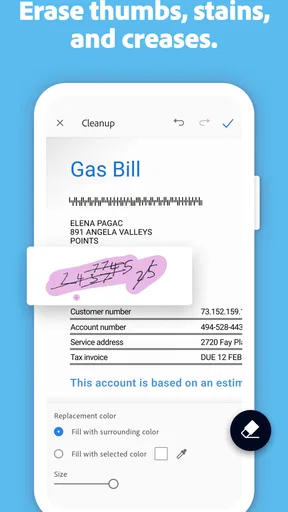
Adobe Scan AI PDF Scanner provides an array of features including automatic text recognition (OCR), the ability to scan multiple pages into one PDF, and options to enhance and clean up scanned documents. Users can also save and share their scans easily, and the app integrates seamlessly with Adobe Document Cloud for added convenience.
Is Adobe Scan AI PDF Scanner free to use?
Adobe Scan offers a free version with essential features such as scanning and basic text recognition. However, to unlock advanced features like additional cloud storage, enhanced editing tools, and more customization options, users may need to purchase a subscription. It's advisable to review the app's pricing details in the app store.
How does Adobe Scan handle document security and privacy?
Adobe Scan takes document security and privacy seriously. It uses encryption to protect data in transit and offers secure cloud storage options. Users should review Adobe's privacy policy and terms of service to understand how their data is managed and what measures are in place to safeguard user information.
Does Adobe Scan AI PDF Scanner require an internet connection?
While Adobe Scan can perform basic scanning and text recognition offline, some features such as saving to Adobe Document Cloud or sharing via email may require an internet connection. For the best experience and access to all features, it is recommended to have a stable internet connection.
Can Adobe Scan convert scanned documents into editable text?
Yes, Adobe Scan's OCR technology allows users to convert scanned documents into editable text. This feature makes it easy to extract and manipulate text from physical documents. However, the accuracy of text recognition may vary based on the quality of the original document and the clarity of the scan.
